
Export and reports
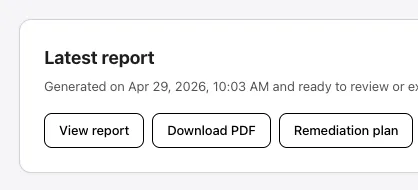
When a scan completes, PhantomOps generates a report for the project. You can review it in-app, download it as a PDF, or open the AI-assisted remediation plan — all from the Latest report card on the project’s Overview tab.
Latest report card
Section titled “Latest report card”The card surfaces the most recent generated report and three primary actions:
- View report — opens the report in the dashboard.
- Download PDF — opens the export modal with four PDF variants (see Download PDF below).
- Remediation plan — opens the AI-assisted remediation summary.
A Regenerate report button is also available on the project’s Overview-tab card if you want to rebuild the report after triage changes (see Regenerate the report).
View report
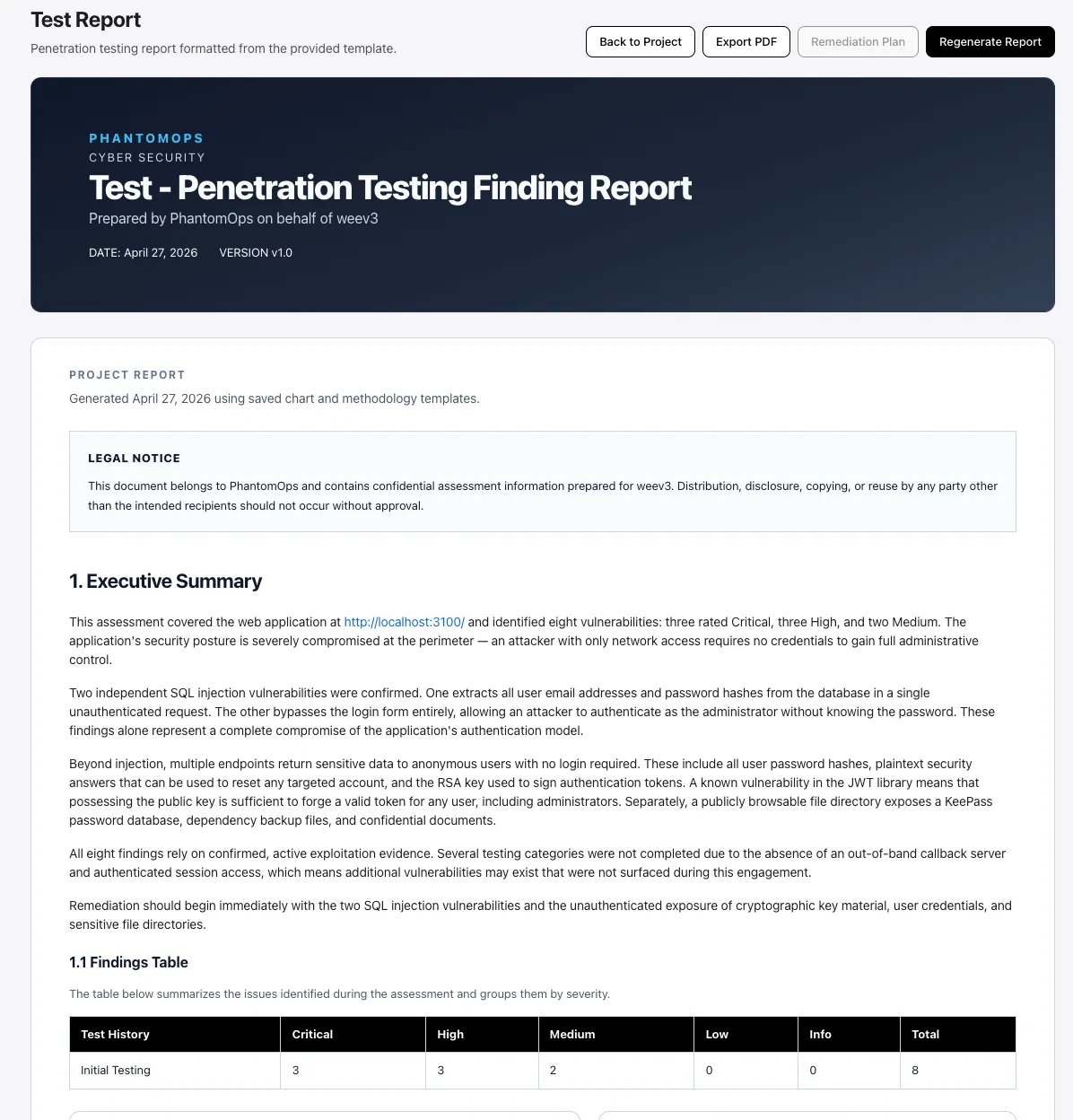
Section titled “View report”Selecting View report opens the full report inside the dashboard. The header shows the project name with the report title (e.g., Test — Penetration Testing Finding Report), the prepared-by line, the date, and the version. Top-right quick actions cover Back to Project, Export PDF, Remediation plan, and Regenerate Report.
The body includes:
- Executive Summary — a high-level overview tailored to non-technical stakeholders.
- Scope — what was in scope, what was tested, and any limitations.
- Methodology — how the assessment was conducted, with a phase/coverage/status table.
- Findings — full write-ups for each finding (description, implication, recommendation, proof of concept, references).
- Remediation plan — developer-focused fix and validation steps.
- Appendix — endpoint coverage records.
Download PDF
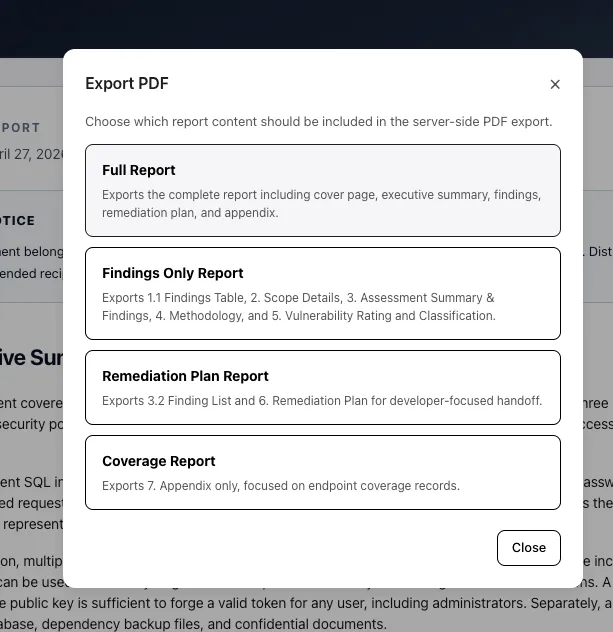
Section titled “Download PDF”Selecting Download PDF (from the Latest report card or from the Export PDF button in the in-app viewer) opens a modal listing four variants. Pick the one that matches your audience.
Full Report
Section titled “Full Report”Exports the complete report — cover page, executive summary, findings, remediation plan, and appendix. This is the single document you’d hand to a stakeholder who needs the full assessment.
Findings Only Report
Section titled “Findings Only Report”Exports five sections, scoped to the issues and how they were rated:
- 1.1 Findings Table
- 2. Scope Details
- 3. Assessment Summary & Findings
- 4. Methodology
- 5. Vulnerability Rating and Classification
Use this when the audience needs the issues and rating scheme but not the executive narrative or remediation guidance.
Remediation Plan Report
Section titled “Remediation Plan Report”Exports two sections, focused on engineering hand-off:
- 3.2 Finding List — IDs and titles to fix.
- 6. Remediation Plan — developer-focused remediation steps and validation steps for each finding.
This is the document you give engineers: it tells them what to fix and how to verify the fix.
Coverage Report
Section titled “Coverage Report”Exports the appendix only:
- 7. Appendix — endpoint coverage records (every URL the agents tested, the technique used, the parameter, and the outcome).
Use this when you need to prove what was tested — for example, for a compliance audit or to compare coverage between runs.
See also
Section titled “See also”- View findings and Triage — the workflows that change what ends up in a report.
- Plans — which report variants each plan tier unlocks.