
Create a project
A project in PhantomOps represents a single target you want to assess: one website or one API. It owns the assigned plan slot, the working-hours window, the saved URL, the scan history, and the findings.
If this is your first project, use the Getting started flow instead — it bundles project creation and scan setup into one screen. This page covers creating additional projects from the dashboard.
Who can create projects
Section titled “Who can create projects”You need create-project permission on your organization. Most members have it; if the Add site button is missing on /projects, ask an organization admin to grant the role.
Open the create dialog
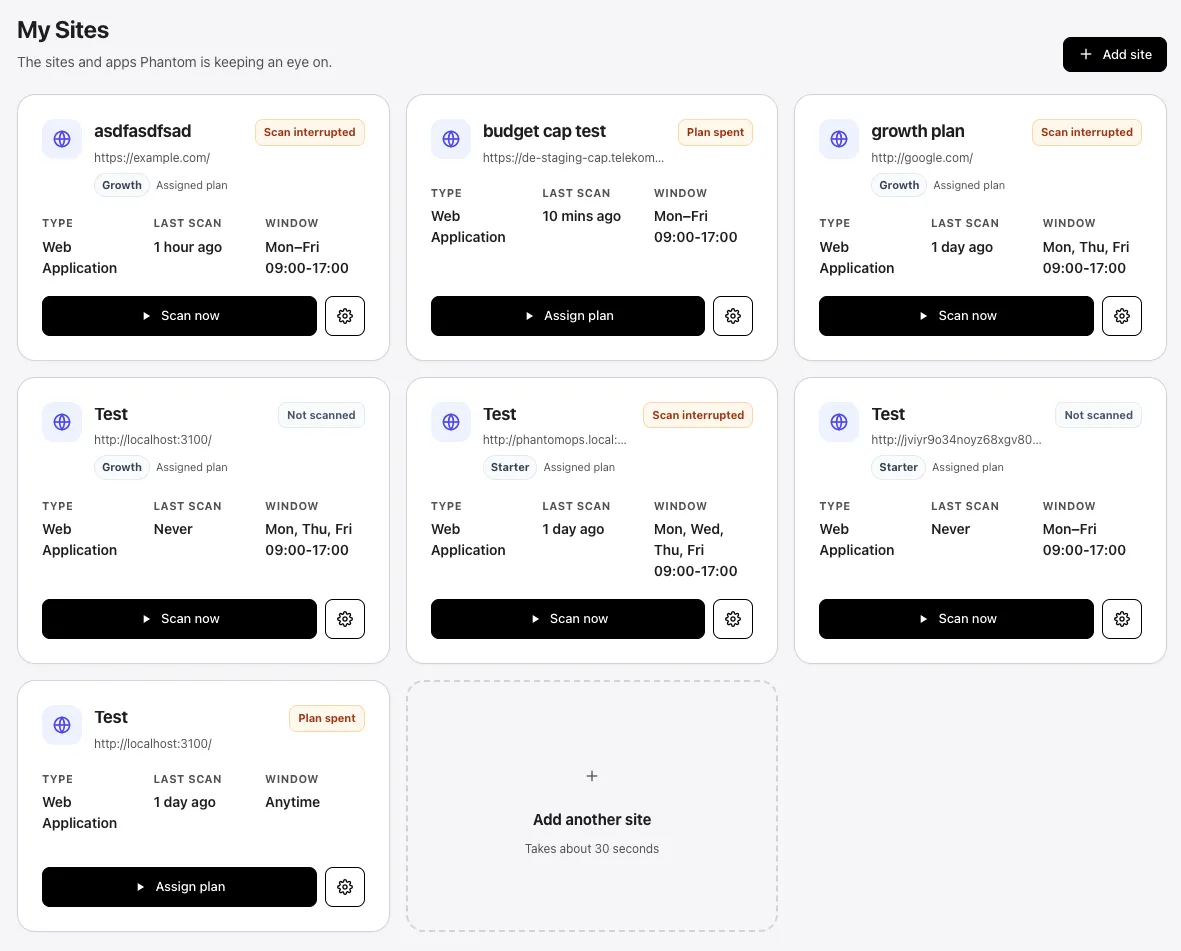
Section titled “Open the create dialog”From the projects page (titled My Sites in the dashboard), select Add site in the top-right. You can also use the dashed Add another site card at the end of the grid — both open the same dialog.
Fill in the fields
Section titled “Fill in the fields”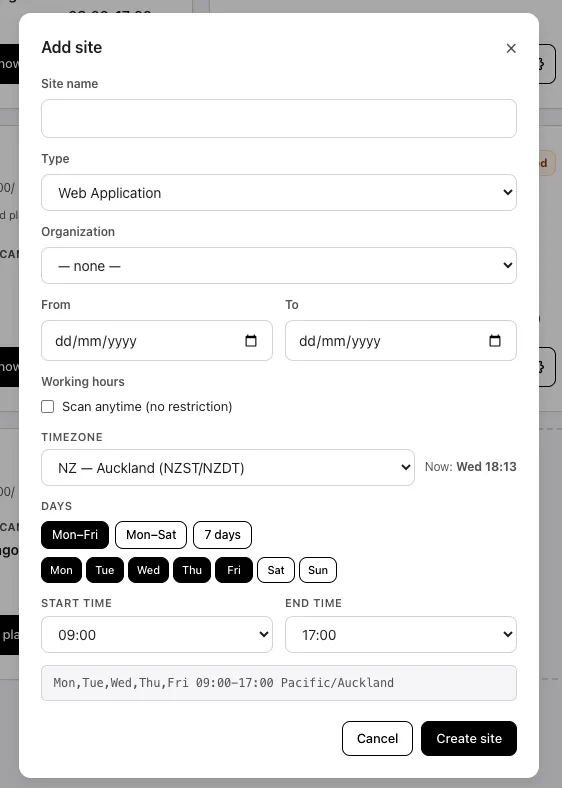
| Field | Required | Notes |
|---|---|---|
| Site name | Yes | Max 120 characters. Use the target’s real-world name (e.g., Customer portal). |
| Type | Yes | Web Application or Web API. Drives some scan defaults. |
| Organization | Super-admins only | Select which organization owns this project. Org admins are locked to their own organization. |
| From / To | No | Optional date range when scanning this project is permitted. Leave blank for no date constraint. |
| Working hours | Yes | Time-of-day window for scan traffic. Defaults to Mon–Fri 09:00–17:00 Pacific/Auckland. Choose Scan anytime to disable the window. |
After saving, the project appears on /projects immediately. The Linked URL field — which assigns one saved asset URL to the project — is only visible when editing an existing project, so you set the URL in a follow-up step (see Manage projects) or by going through the scan wizard.
Working hours
Section titled “Working hours”A project’s working-hours window controls when scan traffic may run. The format is one of:
anytime— no restriction.DAYS HH:MM-HH:MM TIMEZONE— e.g.Mon,Tue,Wed,Thu,Fri 09:00-17:00 Pacific/Auckland.
Constraints:
- Hours snap to whole hours (
00:00through23:00). - The end time must be after the start time. Overnight windows (e.g., 22:00–06:00) are not supported.
- Day presets: Mon–Fri, Mon–Sat, 7 days.
- Supported timezones include Auckland, Sydney, Perth, Singapore, Tokyo, Mumbai, Dubai, London, Paris, US Eastern/Central/Mountain/Pacific, and UTC.
Assign a plan
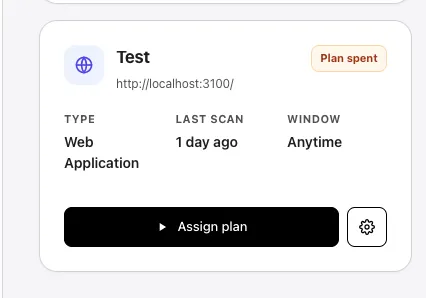
Section titled “Assign a plan”A new project starts with no plan assigned and the badge Needs plan on the project card. PhantomOps cannot run a full scan without an assigned plan slot.
To assign one:
- From
/projects, find the new project’s card. - Select the primary action button (it reads Assign plan when no plan is assigned).
- Choose an unused Starter, Growth, or Teams plan slot from the modal.
If no slots are available, buy more from Settings → Billing. See Plans for what each tier unlocks and Checkout and invoices for purchase flow.
What happens next
Section titled “What happens next”After the project is created and a plan is assigned, the card’s primary button changes to Scan now. Selecting it opens the scan setup wizard at the Assets step where you save the URL for this project. Continue with Configure and launch a scan.
Common mistakes
Section titled “Common mistakes”- Putting two URLs on one project. Only one URL can be linked. Create a second project instead.
- Forgetting to assign a plan. A freshly created project shows Needs plan and cannot scan until a slot is attached.
- Naming the project too generically. Names like
Testare hard to scan-read in long lists. Tie the name to the actual target. - Setting an overnight working-hours window. Not supported. Use a daytime window or Scan anytime.