
Overview
The Settings area is where you manage your account security, plan inventory, and team. It is reached from the user menu in the top-right of any dashboard page.
The Settings sidebar has four sections: Overview, Security, Billing, and Users.
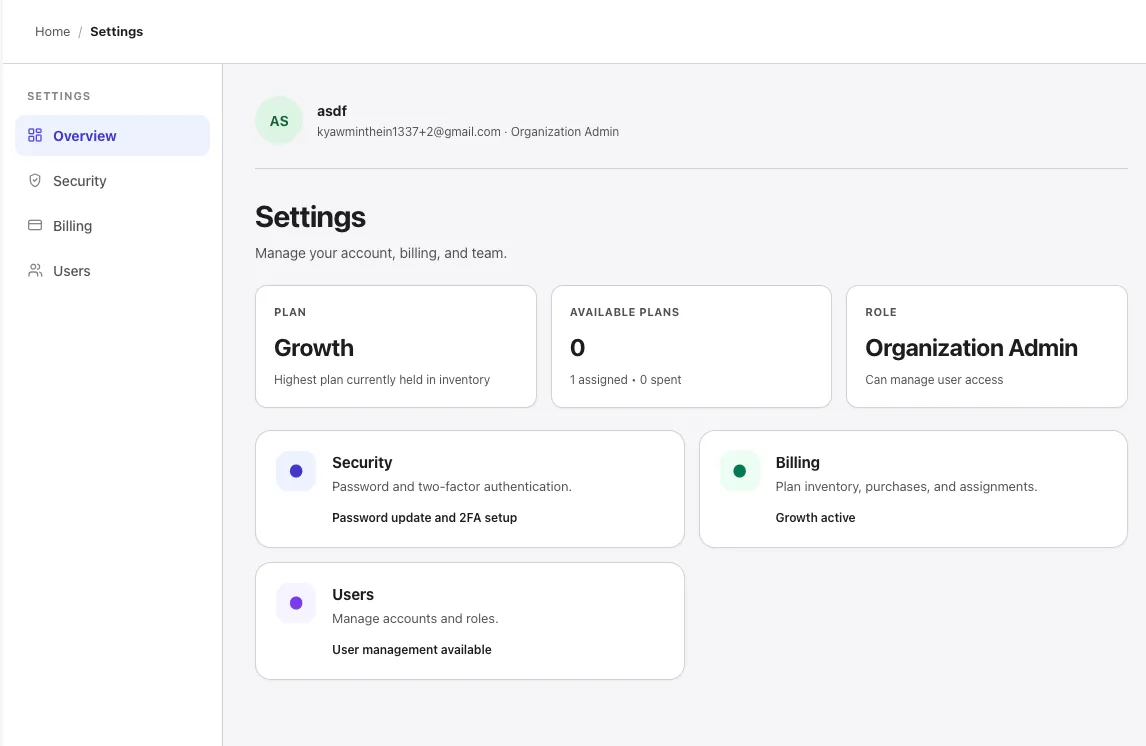
Settings landing
Section titled “Settings landing”The Overview page summarizes your account at a glance with three stat cards across the top:
| Stat | What it shows |
|---|---|
| Plan | The highest plan tier currently held in your organization’s inventory (e.g., Growth). |
| Available plans | How many unused plan slots are ready to assign, and how many have been spent. |
| Role | Your role on the organization (e.g., Organization Admin, Pentester). |
Below the stats, three navigation cards repeat the sidebar entries (Security, Billing, Users) with a one-line summary of what each contains and the current state (e.g., Growth active, User management available).
Security
Section titled “Security”The Security page manages your password, two-factor authentication, and email notifications.
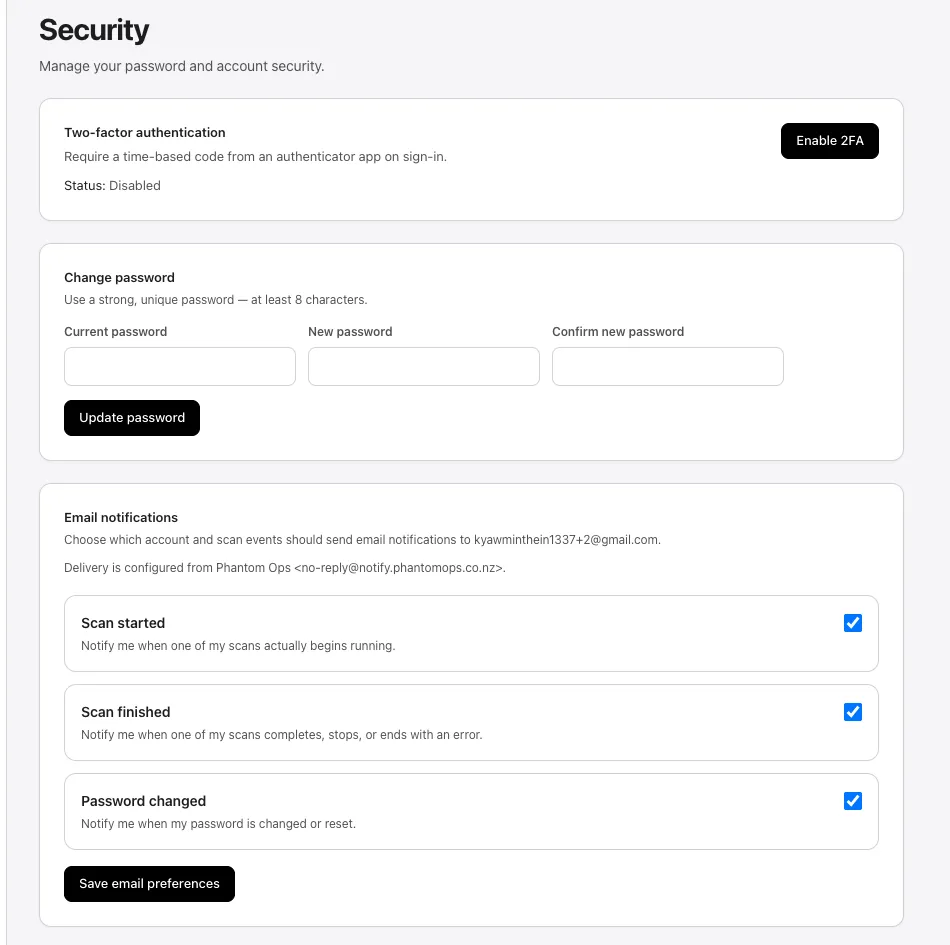
Three panels:
-
Two-factor authentication — toggle 2FA with the Enable 2FA button. The status reads
DisabledorEnabled. When enabled, sign-in requires a time-based code from an authenticator app. -
Change password — provide your current password, then a new one (minimum 8 characters), and confirm. Select Update password to apply.
-
Email notifications — choose which scan and account events trigger an email. Three toggles are available:
- Scan started — when one of your scans actually begins running.
- Scan finished — when a scan completes, stops, or ends with an error.
- Password changed — when your password is changed or reset.
Notifications are delivered from
Phantom Ops <no-reply@notify.phantomops.co.nz>to your account email. Select Save email preferences to apply.
Billing
Section titled “Billing”The Billing page is where you buy plan inventory for your organization. Each purchased plan becomes one assignable slot for one project scan cycle.
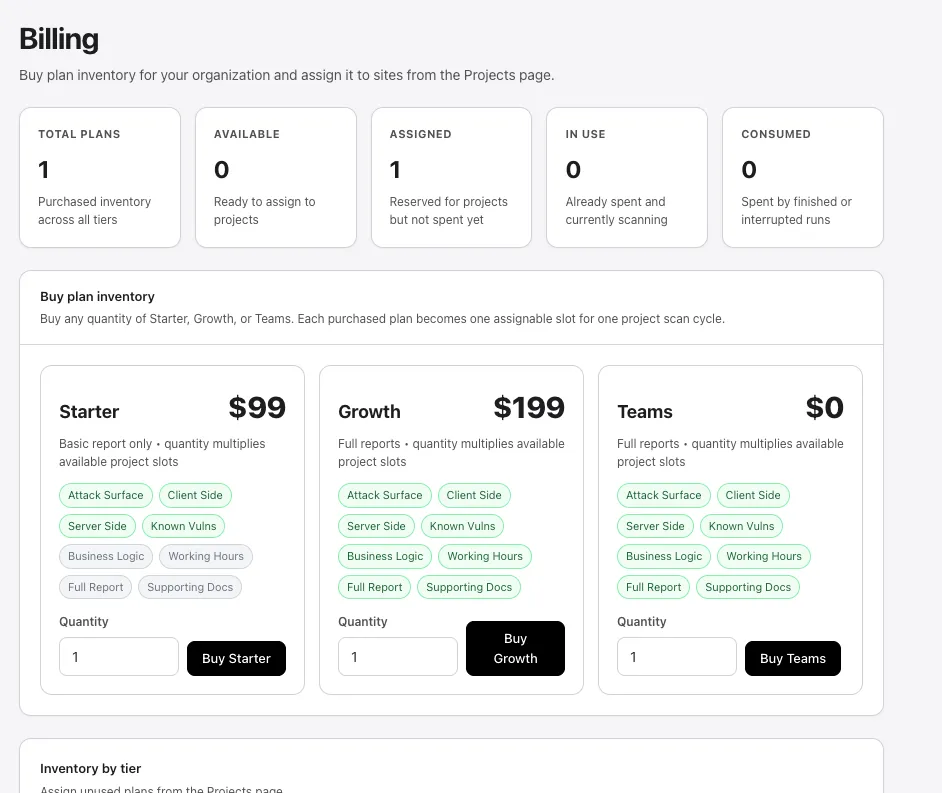
Five stat cards run across the top:
| Stat | What it shows |
|---|---|
| Total plans | Total purchased inventory across all tiers. |
| Available | Slots ready to assign to projects. |
| Assigned | Slots reserved for a project but not yet spent. |
| In use | Slots currently scanning. |
| Consumed | Slots spent by finished or interrupted runs. |
Below the stats, Buy plan inventory lists three tiers:
- Starter —
$99per slot. Basic report only. Includes Attack Surface, Client Side, Server Side, Known Vulns, Business Logic, Working Hours, Full Report, and Supporting Docs feature flags as listed on the card. Quantity multiplies available project slots. - Growth —
$199per slot. Full reports plus the same feature flags. Quantity multiplies available project slots. - Teams — usage-based (no fixed price). Full reports with the same feature flags. Quantity multiplies available project slots.
Set the Quantity for the tier you want and select Buy {tier} to send the purchase to Stripe checkout. After payment, the slots appear in Available and can be assigned from the project card on My Sites.
For the full plan-feature matrix, see Plans.
The Users page is where organization admins invite and manage teammates. It is available on Growth and above.
Selecting Add user opens the invite dialog:
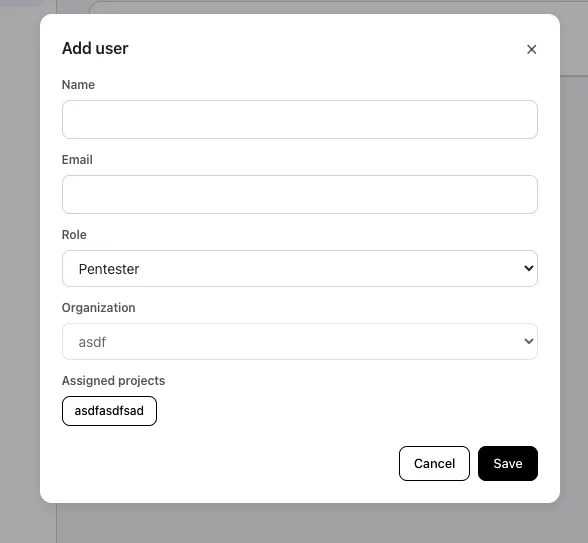
Fields:
- Name — display name for the new user.
- Email — the invitation is sent to this address. The recipient sets their password from the invite email (see Getting started → Create your account).
- Role — controls what the user can do. Roles include
Pentester,Organization Admin, and others — pick the least-privileged role that lets the person do their job. - Organization — which organization the user belongs to. Super-admins can pick any; org admins are locked to their own.
- Assigned projects — restrict the user to specific projects. Leave empty for organization-wide access.
See also
Section titled “See also”- Plans — what each plan tier unlocks for projects, scans, and reports.
- Credits — credit-based billing for usage-based tiers.
- Checkout and invoices — Stripe checkout flow and invoice history.