
Scheduling
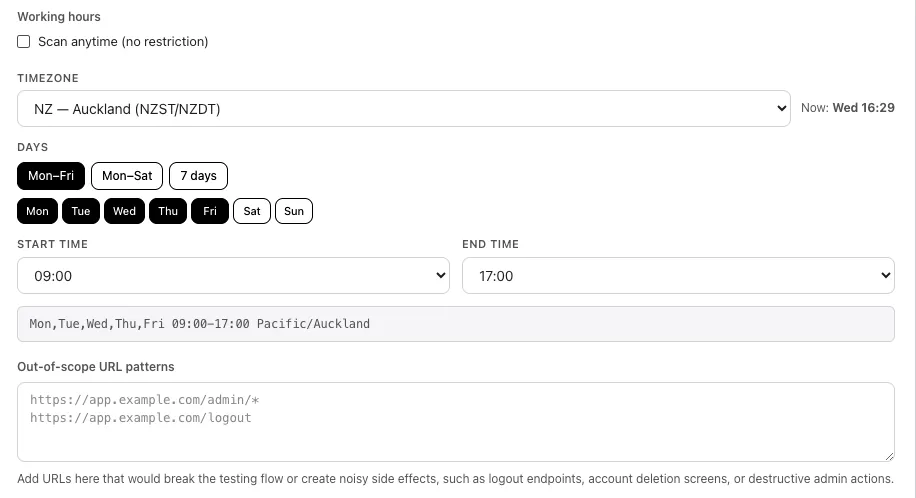
Scheduling controls when scan traffic is allowed to run against your target. PhantomOps does not run on a calendar schedule (no “scan every Monday at 9am” — yet); instead, you give a project a working-hours window, and scans only fire inside it.
The working-hours window
Section titled “The working-hours window”A project’s working-hours window is one of:
anytime— no time restriction; scans run whenever you launch them.DAYS HH:MM-HH:MM TIMEZONE— e.g.,Mon,Tue,Wed,Thu,Fri 09:00-17:00 Pacific/Auckland.
You set the window when you create or edit a project. See Create a project → Working hours for the field-level guidance.
Constraints
Section titled “Constraints”- Hours snap to whole hours (
00:00through23:00). - The end time must be after the start time. Overnight windows (e.g., 22:00–06:00) are not supported. To scan overnight, use Scan anytime.
- Day presets: Mon–Fri, Mon–Sat, 7 days.
- Supported timezones include Auckland, Sydney, Perth, Singapore, Tokyo, Mumbai, Dubai, London, Paris, US Eastern/Central/Mountain/Pacific, and UTC.
What happens at launch
Section titled “What happens at launch”When you select Start scan:
- If the current time is inside the window, the scan starts immediately.
- If the current time is outside the window, the scan moves to the Scheduled state and starts automatically when the window next opens.
A scan in Scheduled waits in the queue. You can cancel it from the project’s Scans tab; it does not consume the assigned plan slot until the first agent actually starts.
What happens mid-scan
Section titled “What happens mid-scan”If a scan is running when the working-hours window closes — for example, the run is ongoing at 17:00 and your window ends at 17:00 — PhantomOps pauses outgoing traffic to the target until the next window opens. Agents resume on schedule the next day.
You can stop a scan at any time from the Active Scan card in the sidebar; see Watch the scan.
Plan-tier rules
Section titled “Plan-tier rules”- On Starter, custom working-hours scheduling is unavailable. Starter projects run with
anytime. - On Growth and Teams, the working-hours window is fully editable.
For the full plan-feature matrix, see Plans.
See also
Section titled “See also”- Create a project → Working hours — set or change the window.
- Configure and launch a scan — the wizard, including the working-hours block on Step 2.
- Approvals — Safe-mode action approvals run on their own 5-minute clock, separate from the working-hours window.