
Manage projects
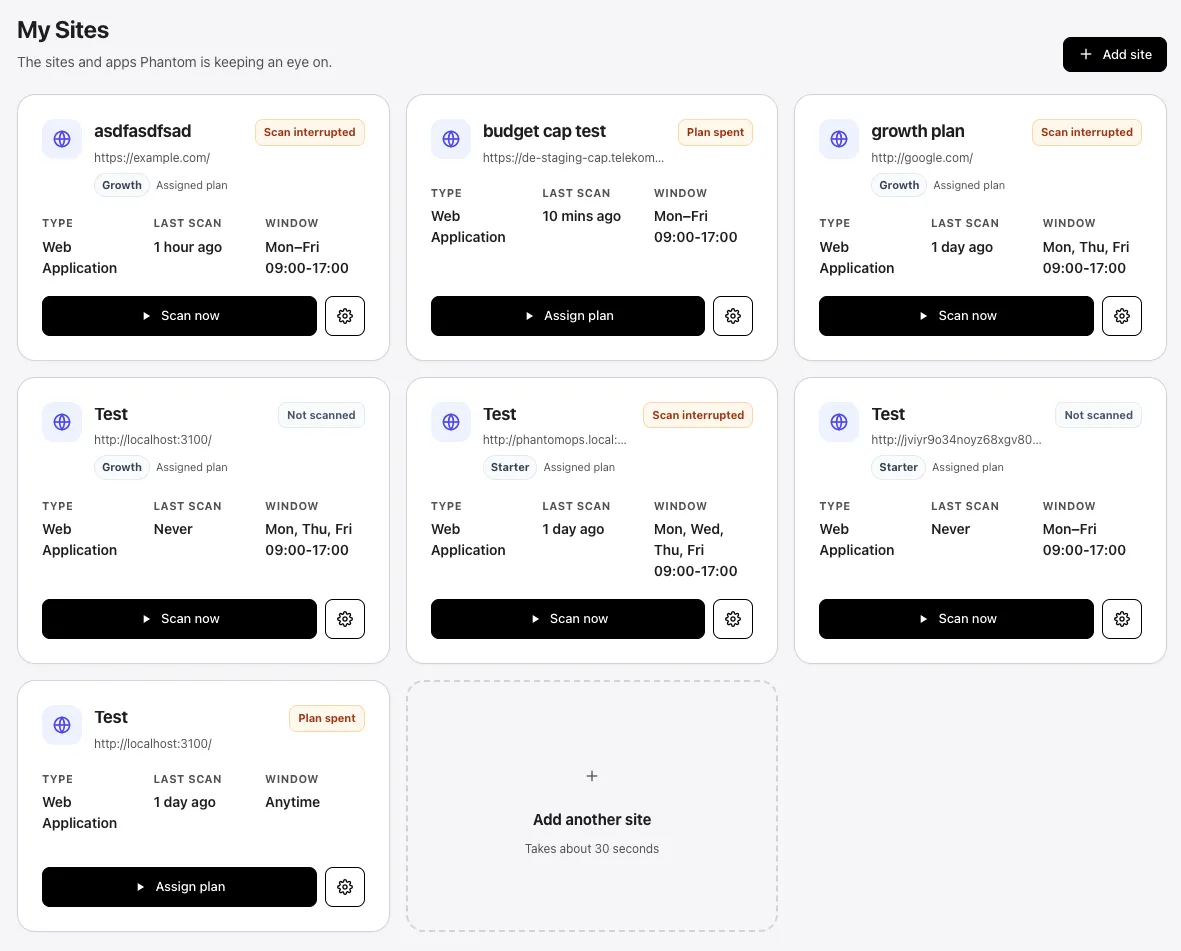
The My Sites dashboard at /projects is your operations view for every project in your organization. It shows status at a glance, lets you launch or resume scans, and is the entry point for editing and removing projects.
What’s on a project card
Section titled “What’s on a project card”Each card shows:
- Project name and a small icon for the project type (web application or web API).
- The linked URL below the name, or No URL saved yet if no asset is attached.
- The assigned plan chip (e.g.,
Starter,Growth,Teams) if a plan is attached. - A status badge in the top-right corner (see status reference below).
- Three quick stats: Type, Last scan, Window (the working-hours summary).
- A primary action button (varies by status —
Scan now,Resume scan, orAssign plan). - A gear button that opens the edit dialog.
Selecting anywhere on the card (outside the buttons) opens the project workspace at /projects/<id>.
Status reference
Section titled “Status reference”The badge in the top-right of each card communicates what the project is doing:
| Badge | Meaning | Primary action |
|---|---|---|
Needs plan | No plan assigned. Cannot run full scans. | Assign plan |
Plan spent | The assigned plan slot has been consumed. | Assign plan |
All clear | Most recent scan complete with zero findings. | Scan now |
N issues | Most recent scan found N findings. | Scan now |
Not scanned | Project has a plan but has never been scanned. | Scan now |
Scanning | A scan is queued, starting, running, or uploading. | Resume scan |
Scheduled | A scan is waiting for the next working-hours window. | Resume scan |
Approval pending | Safe-mode scan paused on a dangerous action. | Resume scan |
Resume scan | A scan is awaiting credit confirmation or approval. | Resume scan |
Scan interrupted | The last scan errored or was stopped. | Scan now |
Edit a project
Section titled “Edit a project”Select the gear button (right of the primary action) on a project card to open the edit dialog.
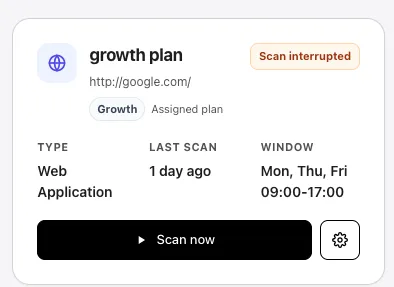
You can change:
- Site name — max 120 characters.
- Type —
Web ApplicationorWeb API. - Organization — super-admins only.
- From / To — optional date range when scans are permitted.
- Working hours — see Create a project for the format.
- Linked URL — pick one saved asset to attach to this project. Only one URL is allowed. If no assets are listed, save one through the scan wizard’s Step 1 — Assets.
Select Save site to apply changes. Validation errors highlight the relevant field with a red message.
Reassign the plan
Section titled “Reassign the plan”When a project shows the Plan spent (or Needs plan) badge, the primary action button on its card reads Assign plan. Selecting it opens the plan picker.
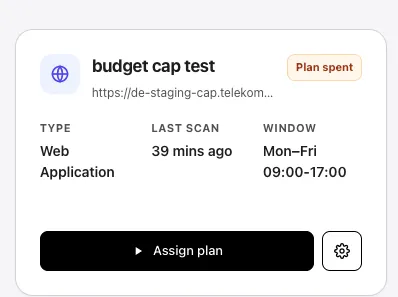
The picker lists every unused plan slot in the project’s organization. Each row shows the plan name and a brief feature summary (full vs basic report; whether Business Logic Agent is included).
To unassign a plan that is currently assigned (and therefore not yet consumed by a full-scan launch), use the Unassign current plan button at the bottom of the modal.
Remove a project
Section titled “Remove a project”To delete a project, open its edit dialog and select Remove site. Confirm at the prompt.
Deleting a project also deletes its findings. Scan history records remain in the organization audit trail. Plan slots already consumed by the project are not refunded.
Pagination and search
Section titled “Pagination and search”The dashboard paginates at 10 projects per page by default. Use the controls at the bottom to change page size or jump to a specific page.
For organizations with many projects, the project workspace itself (after clicking into a project) provides search and filtering across findings — see View findings.
Recovery from a canceled checkout
Section titled “Recovery from a canceled checkout”If a checkout returns to /projects with ?session_id=..., the page polls billing status and shows a notice when the new plan slot lands. If the checkout was canceled, a red notice reads Checkout was canceled before payment completed. Dismiss with the × on the right side of the notice.
See also
Section titled “See also”- Create a project — add a new project from this dashboard.
- Project settings — per-project options inside the project workspace.
- Plans — what each plan tier unlocks.
- Scans — launch and manage scans.