
Configure and launch
The scan wizard runs in four steps — Assets, Configuration, Credentials, and Review — and ends with Start scan. This page covers each step in order. For the end-to-end first-scan path, see Getting started.
Step 1 — Assets
Section titled “Step 1 — Assets”PhantomOps lands you on Step 1 — Assets when you open the wizard for a project. Confirm the saved URL is correct, then select Next.
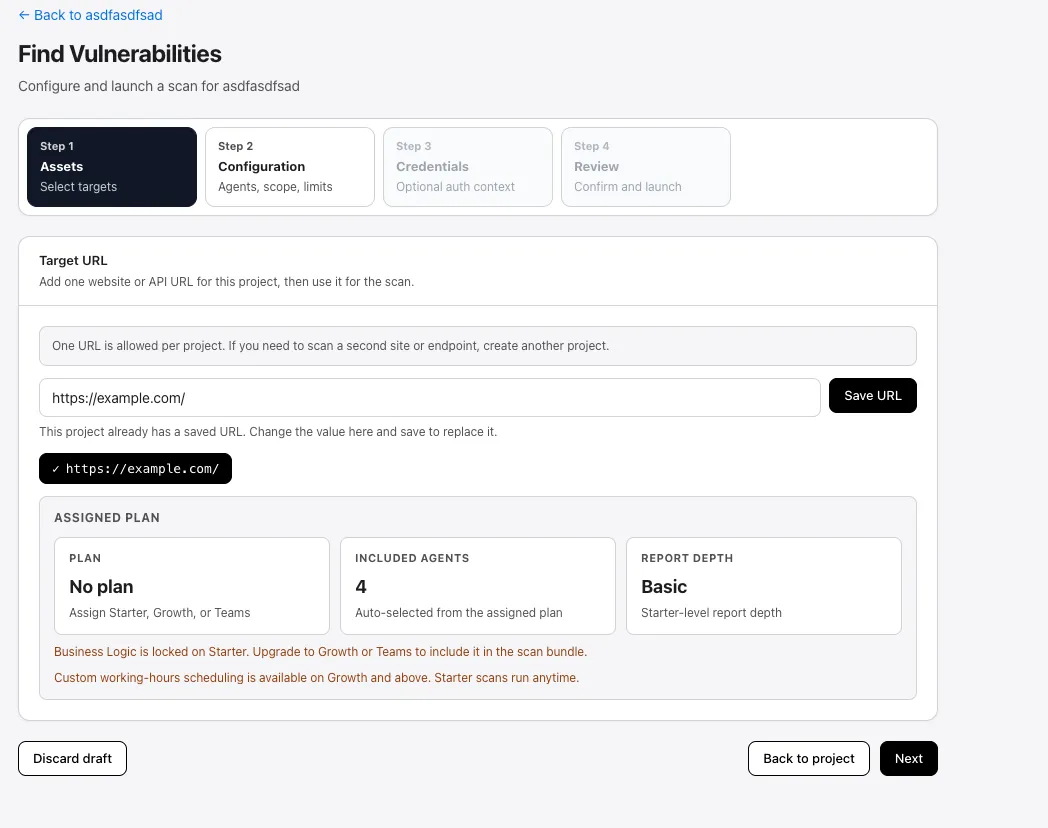
This step also shows the project’s assigned-plan summary. If the badge reads No plan, leave the wizard, assign a plan from the Projects page, then come back.
Step 2 — Configuration
Section titled “Step 2 — Configuration”Step 2 is where you tune scan behavior. Six things to set:
1. Dangerous action mode
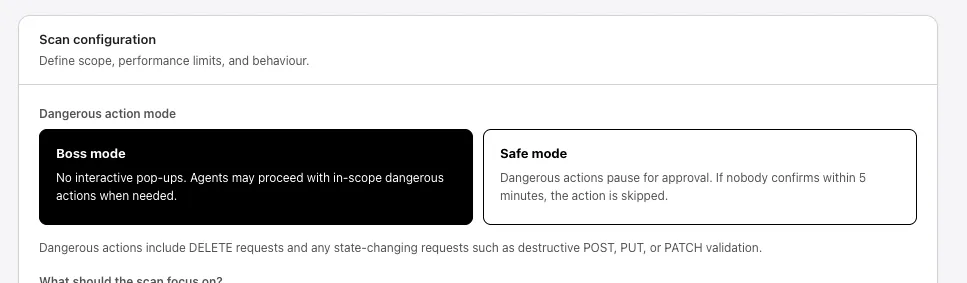
Section titled “1. Dangerous action mode”Pick how the scanner handles potentially destructive requests (DELETEs and any state-changing POST/PUT/PATCH validation):
- Boss mode — no interactive pop-ups. Agents may proceed with in-scope dangerous actions when needed. Scope and safety checks still apply; Boss mode just removes the manual approval prompt.
- Safe mode — every dangerous action pauses for review (e.g., deleting a test user, dumping data). You have 5 minutes to confirm. If no one approves in that window, the action is skipped and the scan continues.
2. Scan agents
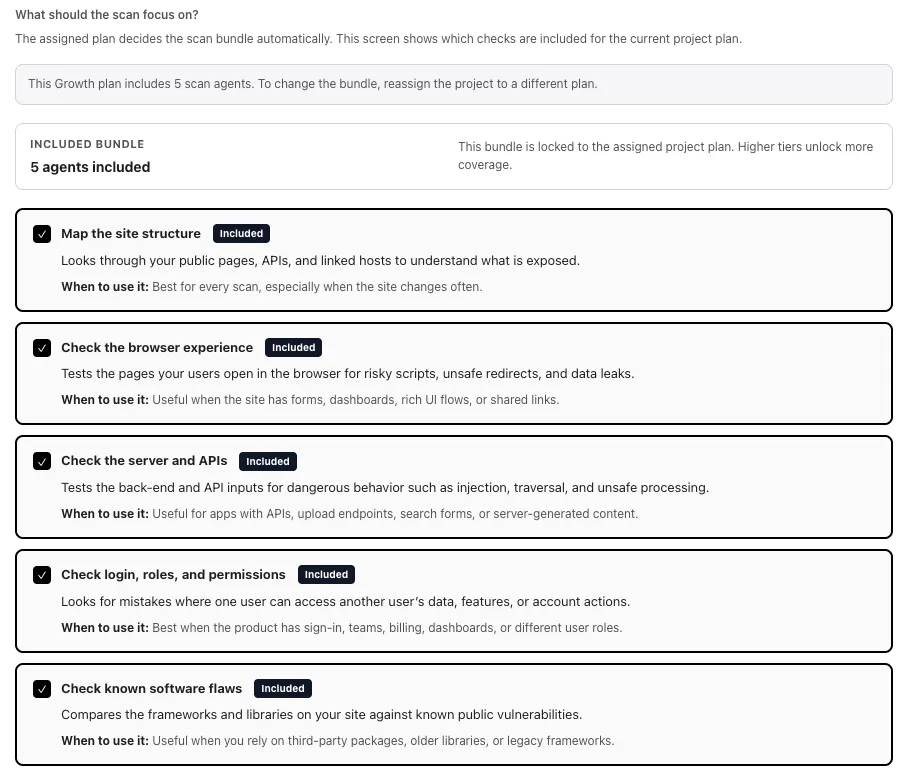
Section titled “2. Scan agents”The assigned plan decides which agents are included. Five agents are available:
- Map the site structure — discovers public pages, APIs, and linked hosts.
- Check the browser experience — tests for risky scripts, unsafe redirects, and data leaks.
- Check the server and APIs — tests back-end and API inputs for injection, traversal, and unsafe processing.
- Check login, roles, and permissions — looks for cross-user access, privilege escalation, and broken authorization.
- Check known software flaws — compares your stack against known public vulnerabilities (SCA).
On Starter, four agents are included but Check login, roles, and permissions is locked. Growth and Teams unlock all five. Some plans additionally gate the Business Logic agent — see Plans for the full matrix.
All agents are tuned to suppress false-positive findings, so you can trust what PhantomOps reports without re-triaging noise.
3. Rate limit
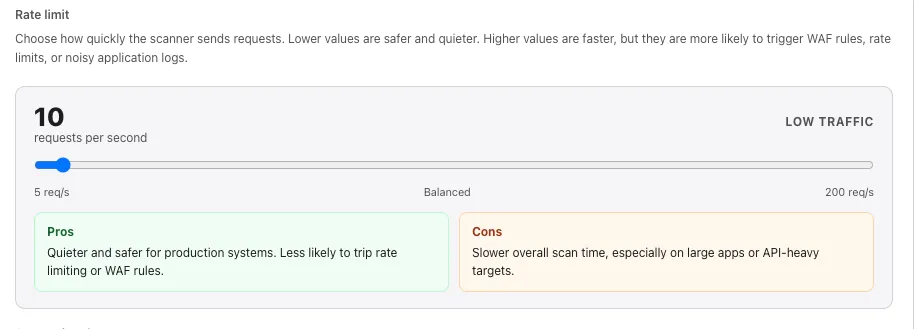
Section titled “3. Rate limit”Choose how quickly the scanner sends requests. Lower values are quieter and safer for production systems. Higher values finish faster, but they are more likely to trigger WAF rules, rate-limit responses, or noisy application logs. The slider runs from 5 req/s (low traffic) up to 200 req/s in 5-step increments.
4. Supporting documents
Section titled “4. Supporting documents”Available on Growth and above. Upload API specs, PDFs, source files, or short notes that help the scan understand the target. Files are attached to this scan setup only.
Limits and rules:
- Up to 10 files, 10 MB each, 30 MB total.
- Archives (zip, tar) and binary bundles are blocked.
- Every upload is treated as untrusted input. Files that look like prompt-injection instructions are rejected.
On Starter, supporting-document uploads are locked at launch.
5. Working hours
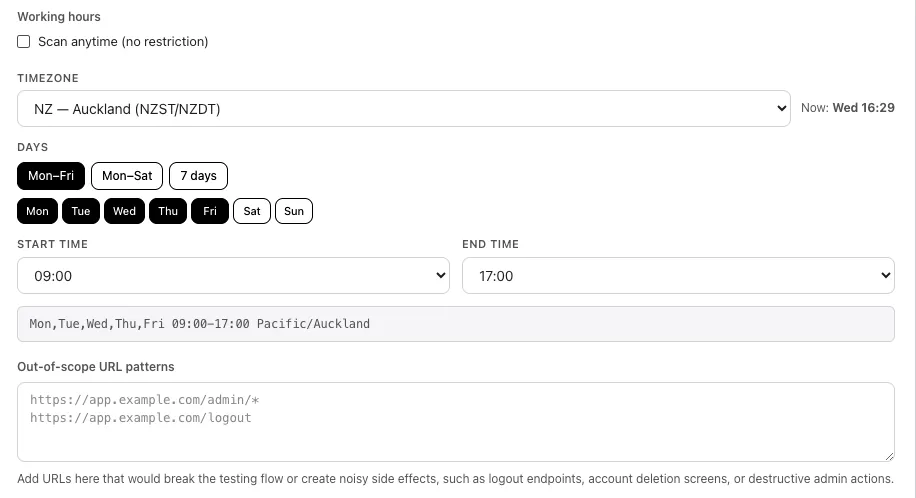
Section titled “5. Working hours”Limit scan traffic to a specific time window. Pick timezone, a day preset (Mon–Fri, Mon–Sat, 7 days) or individual days, and start/end hours.
- End time must be after start time. Overnight windows (e.g., 22:00–06:00) are not supported.
- Toggle Scan anytime to remove the restriction.
- On Starter, custom working-hours scheduling is unavailable; scans run anytime.
6. Out-of-scope URL patterns
Section titled “6. Out-of-scope URL patterns”Add URLs you want the scanner to skip — typically anything that would log users out, delete data, or create avoidable side effects:
https://app.example.com/admin/*https://app.example.com/logout- Each line is a full
http/httpsURL. - A single trailing
*is supported as a wildcard. Wildcards in any other position are rejected. - The scan visits everything else within the saved target URL — these patterns are excluded.

Step 3 — Credentials
Section titled “Step 3 — Credentials”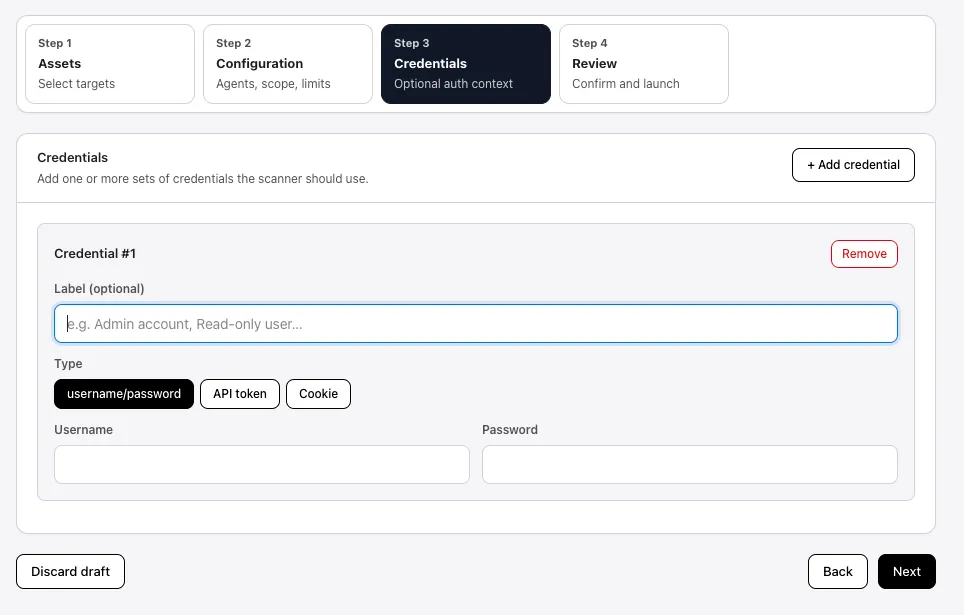
Step 4 — Review
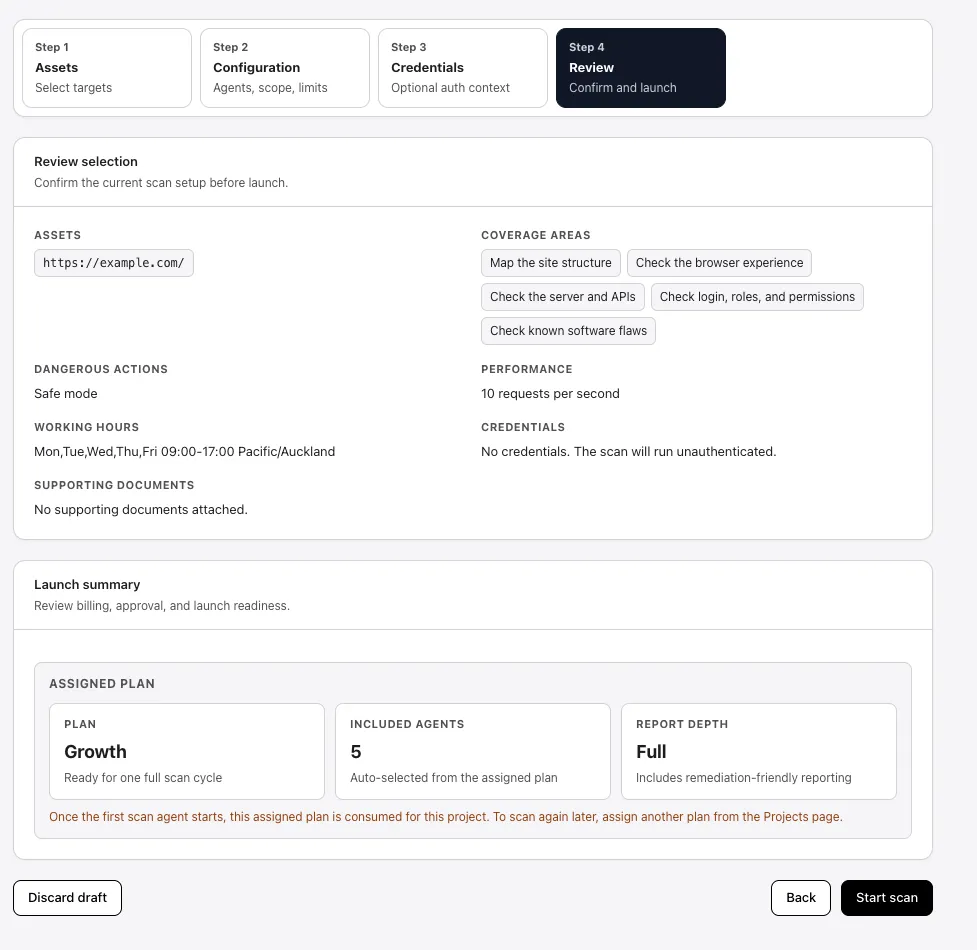
Section titled “Step 4 — Review”On Step 4 — Review, PhantomOps shows a final summary of the run: assets, coverage agents, dangerous-action mode, performance, working hours, credentials, supporting documents, the assigned plan, and the report depth. Confirm everything looks right, then select Start scan.
After launch
Section titled “After launch”After Start scan, PhantomOps shows a Scan started confirmation and the live scan view becomes available. See Getting started → Watch the scan for the live progress, sidebar Active Scan card, and scan-state reference.
See also
Section titled “See also”- Getting started — first-time end-to-end walkthrough.
- Credentials — full credentials reference, including SSO and MFA.
- Plans — what each plan tier includes (agents, working hours, supporting docs, report depth).
- Approvals — review dangerous-action approvals when running in Safe mode.